NVECTA integrates with Claude using MCP (Model Context Protocol), a standard that allows AI assistants to securely access real data and perform actions inside connected platforms. With MCP, Claude doesn’t just answer questions, it can fetch analytics, create segments, and help you take action directly in your NVECTA workspace.
In this guide, we’ll cover how to connect NVECTA with Claude and use it in practice.
Connection Options
There are two ways to connect NVECTA with Claude, depending on your subscription:
Option 1: Claude Pro (or Higher)
Requirements
- Claude Pro plan (or higher) on the web or desktop app
- NVECTA MCP server URL:
https://mcp.notifyvisitors.com/mcp
Setup Steps:
- Open Claude, click your profile icon, then go to Settings and select Connectors.
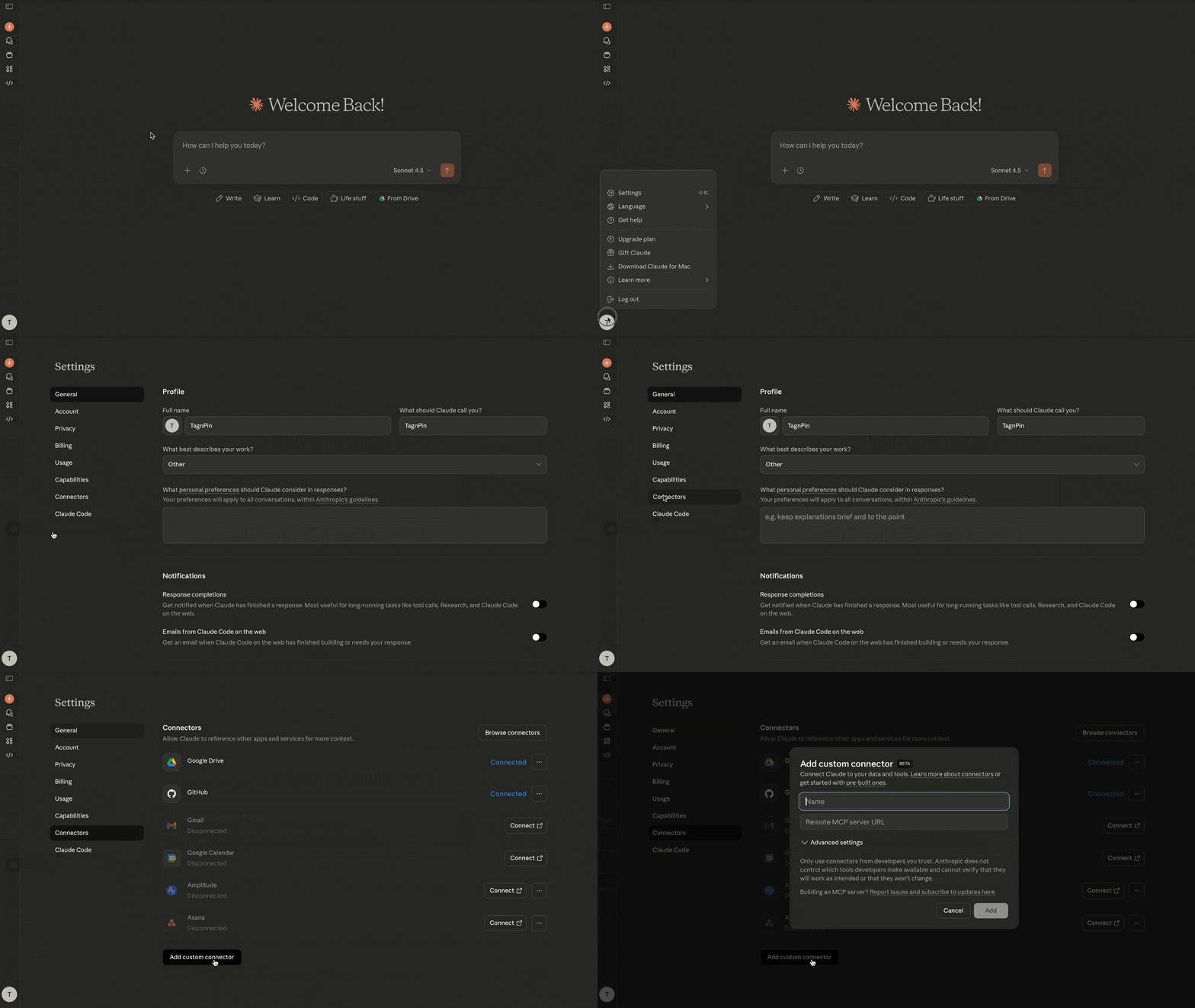
- Choose the option “Add custom connector.” When prompted, enter:
- Name: NVECTA
- MCP server URL: https://mcp.notifyvisitors.com/mcp
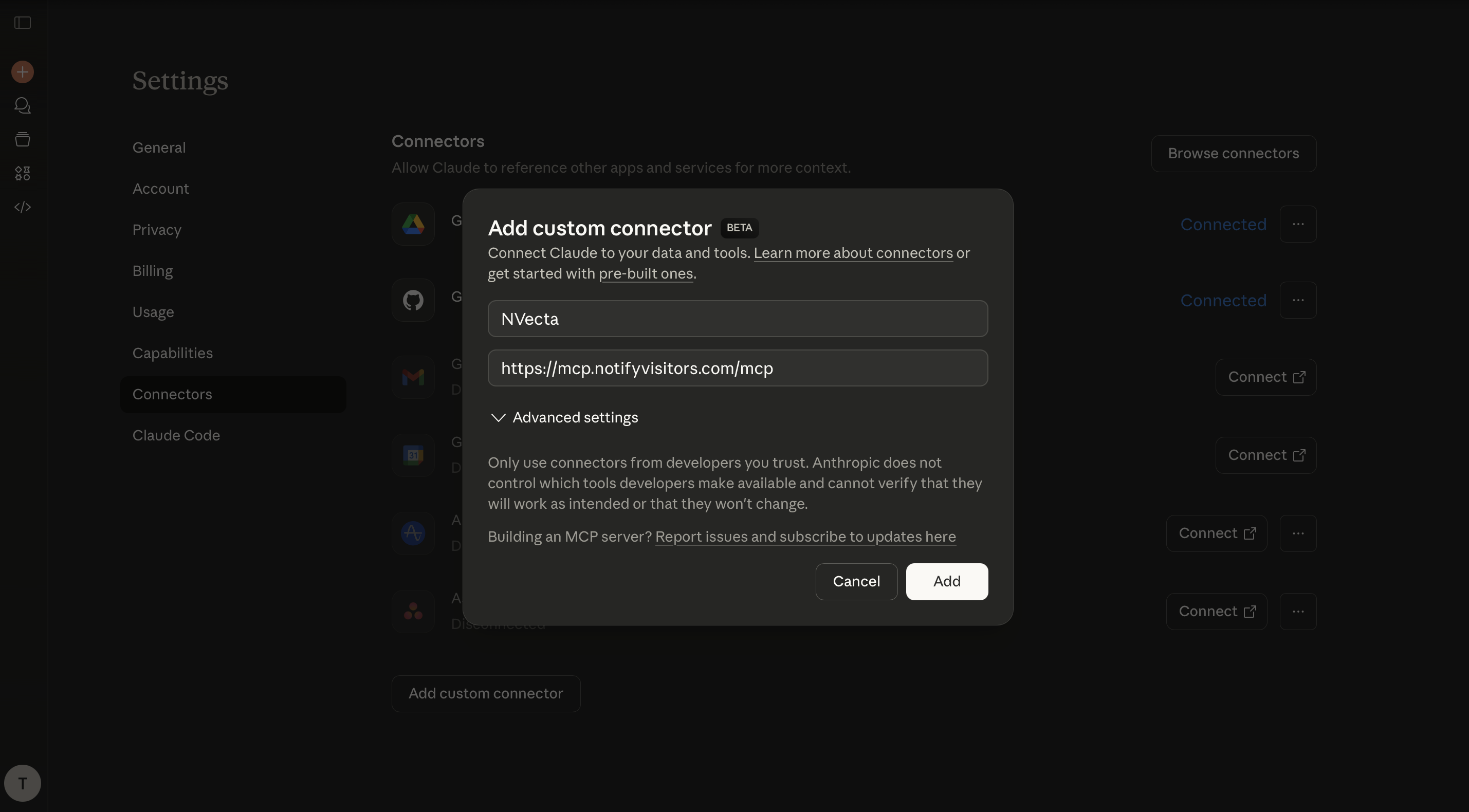
Click “Add” to add the connector.
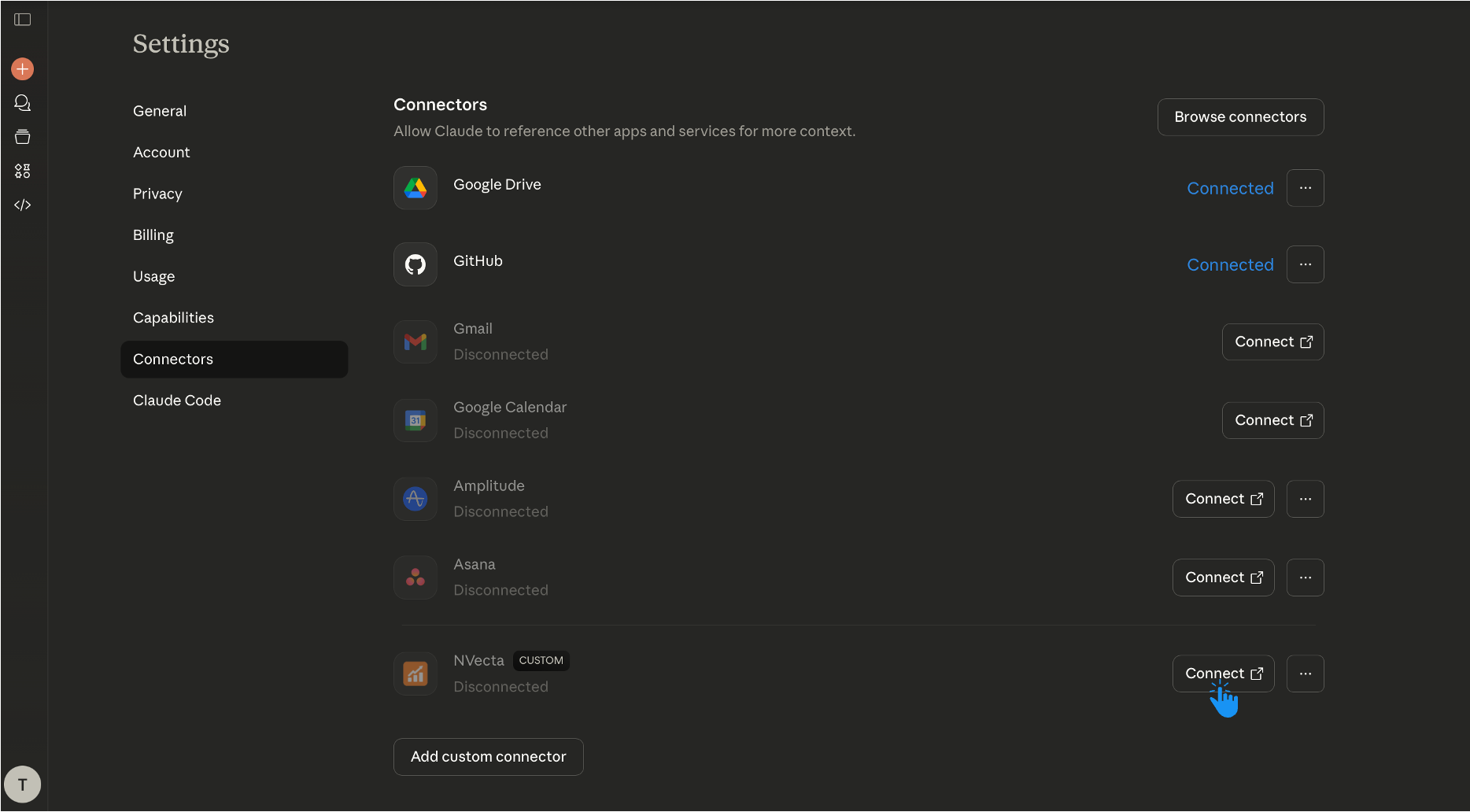
- Once added, click the Connect button.
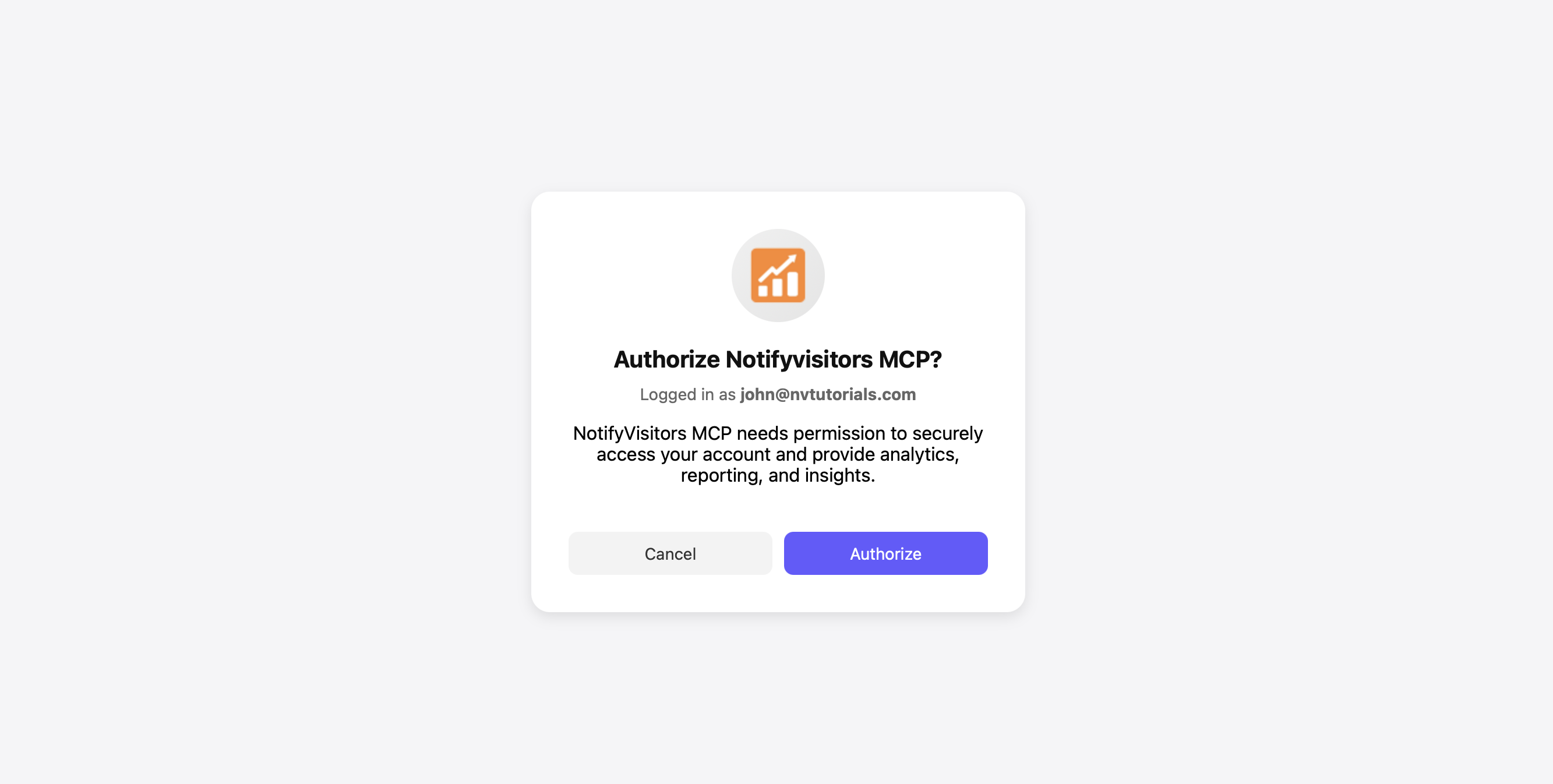
- Claude will redirect you to NVECTA’s authorization page. If you are not already logged in, sign in using your NVECTA credentials. Then click Authorize to grant Claude access to your NVECTA workspace.
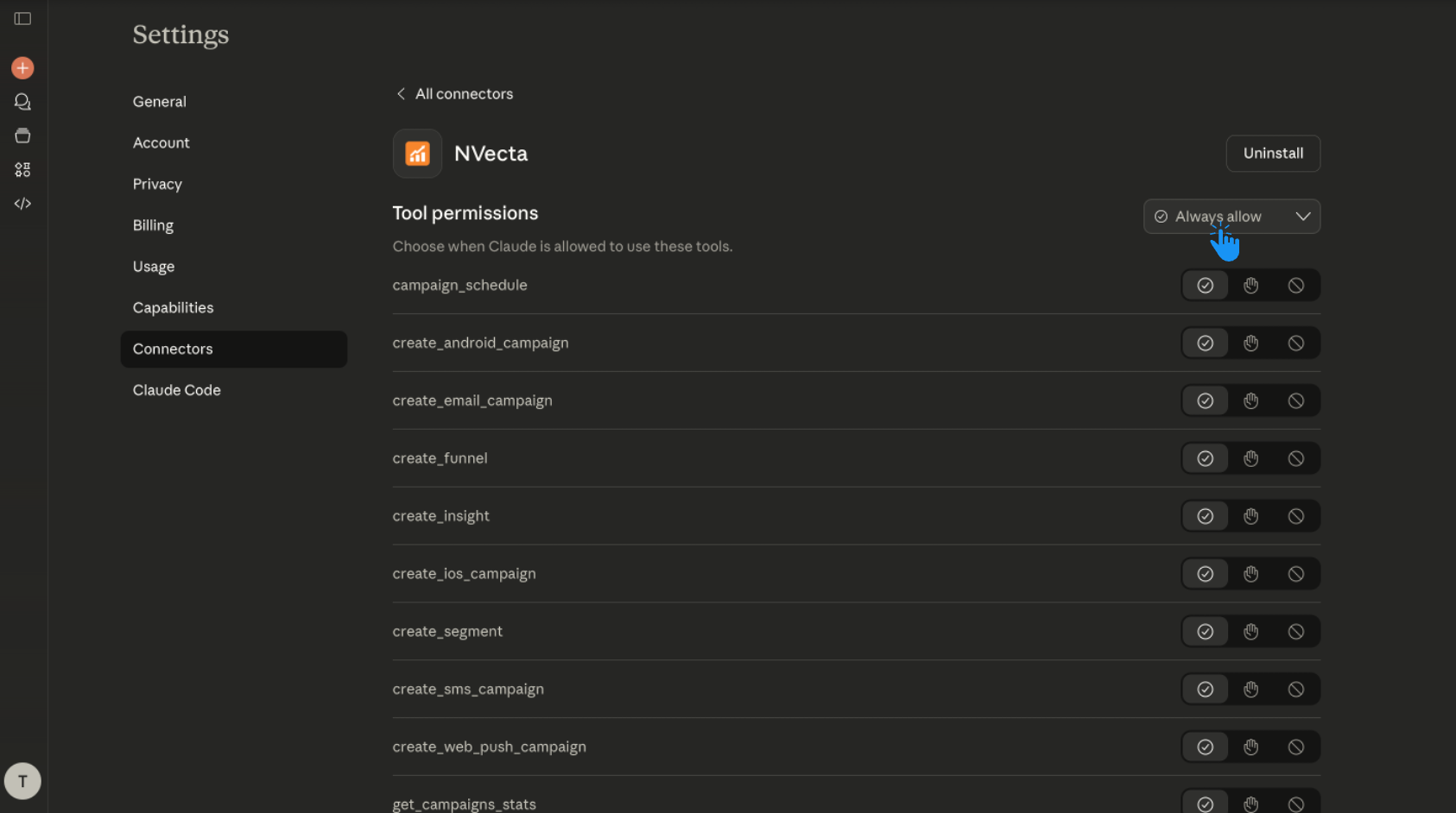
Once authorization is complete, NVECTA will appear as an available MCP connector in Claude. You can click “Configure” to see the list of actions Claude can perform using NVECTA, such as fetching analytics, building segments, launching campaigns, creating journeys, and accessing survey data.
Option 2: Claude Free
Additional Requirements:
- Claude desktop application
- Command line access
Setup Steps:
- Open Claude desktop app
- Navigate to Settings (from window nav bar) → Developer → Edit Config
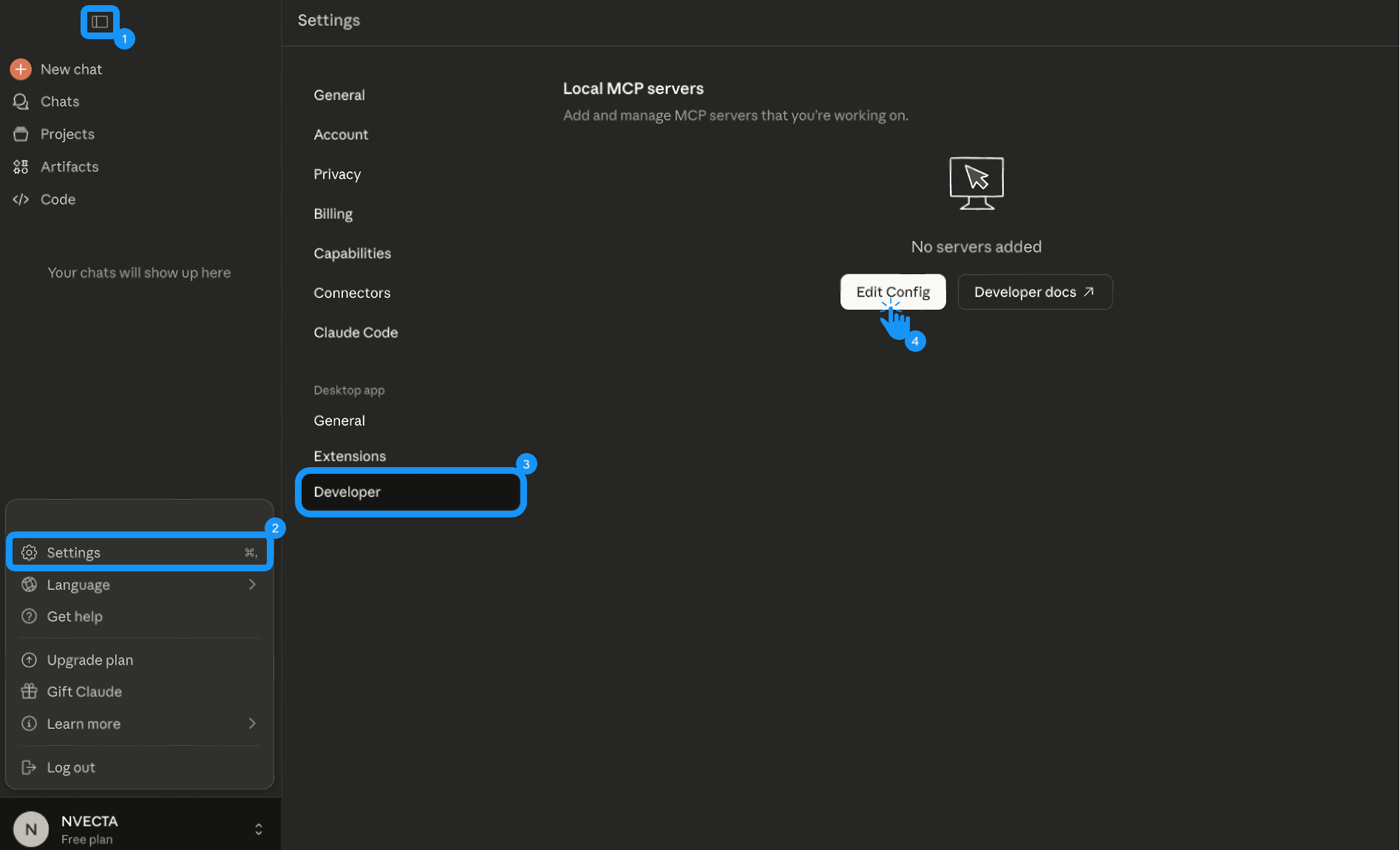
- Open the file that appears and add the following configuration:
- Save the configuration file and restart the Claude desktop app. The NVECTA MCP connector will now be available.
How it works
To use NVECTA via MCP, start a new conversation in Claude and enter your prompt as you normally would. This can be a request to fetch data (such as analytics or funnel insights) or to ask the AI to take action (like creating a segment or drafting a campaign).
Claude automatically decides when to use the NVECTA MCP based on your request. If you want to be explicit, you can add “Use NVECTA MCP” at the end of your prompt to ensure the connector is used.
Now, let’s look at a practical example to see this in action.
Example
Let’s take a funnel-based example to understand how NVECTA works with Claude in action.
In this scenario, we analyze the Digital Fixed Deposit (FD) opening funnel to identify where users are dropping off and what’s causing friction in the funnel.
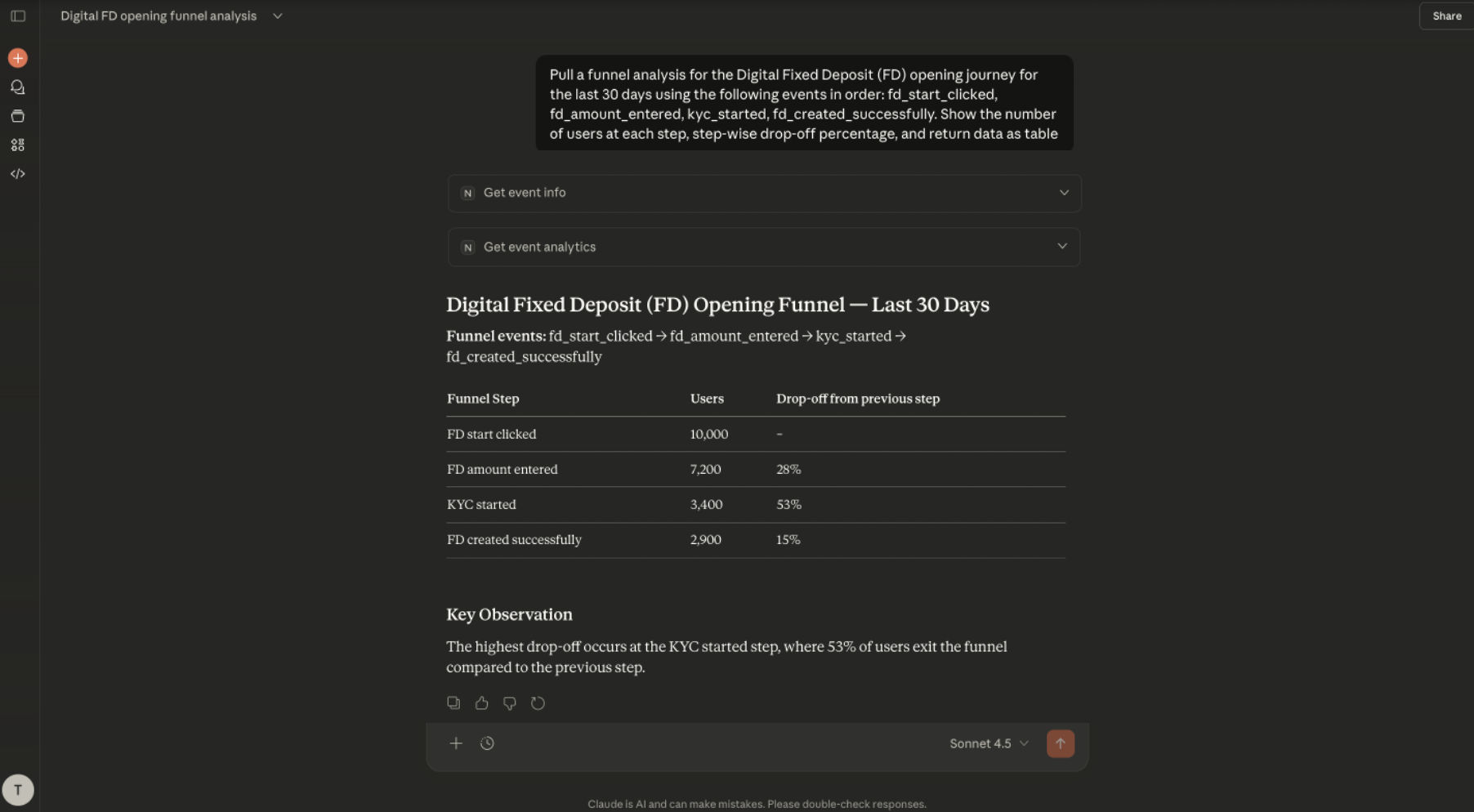
In response, Claude pulls funnel data from NVECTA and returns a clear table showing user progression and drop-offs across each step of the FD funnel.
This makes it easy to see how many users start the FD flow, how many move to amount entry, where KYC begins, and how many successfully complete FD creation.
Diagnose and measures
Now, based on the generated analytics, we can ask Claude to diagnose what went wrong and suggest measures to improve.
From the funnel data, it’s clear that a significant portion of users drop off at the KYC started step. Instead of manually investigating this, we can simply ask Claude to analyze the issue.
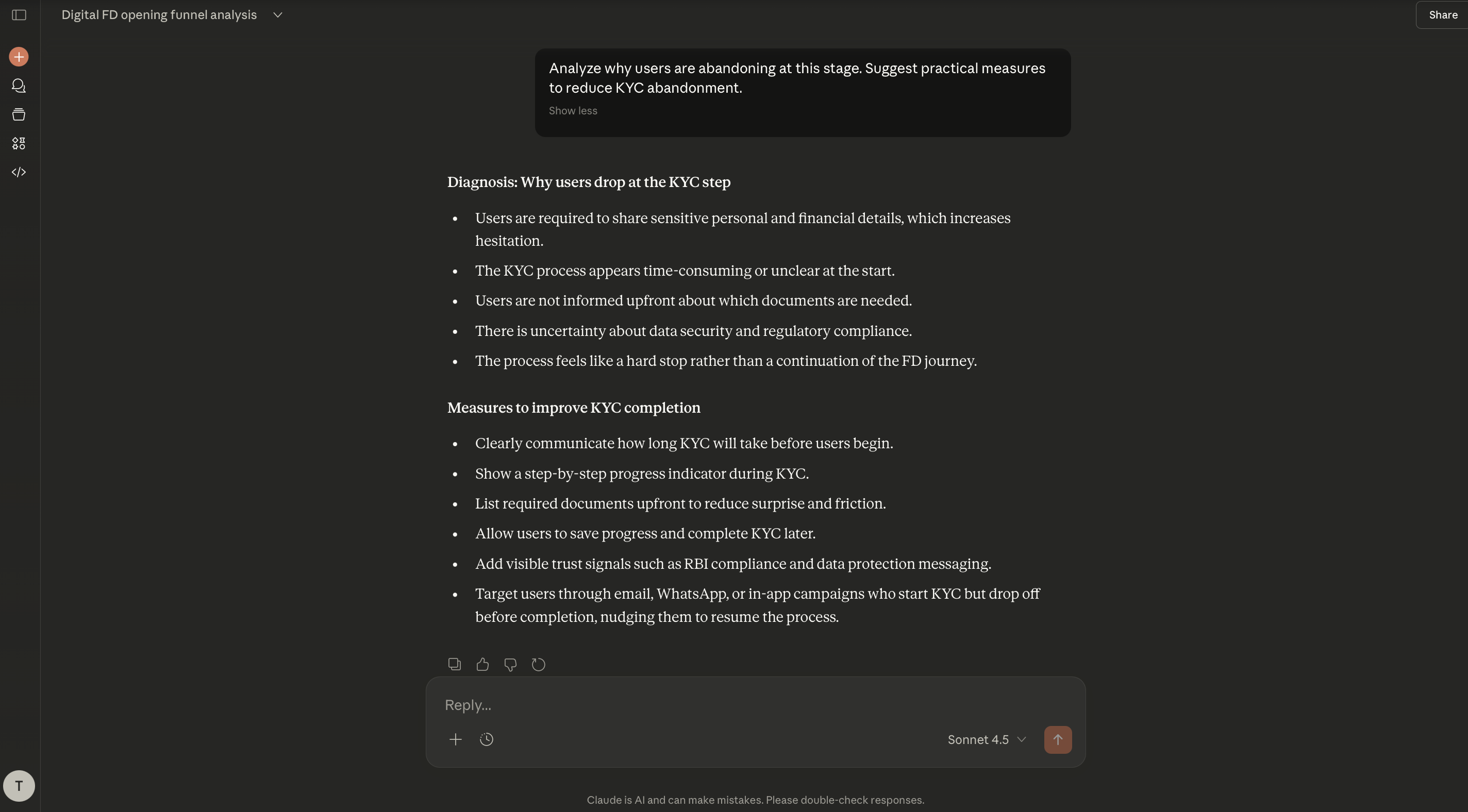
In its response, Claude explains that many users drop off at this stage because the KYC process adds extra effort. Based on this, Claude suggests a few practical steps to make KYC easier and help more users complete it.
Turn insight into action
Among the suggested steps, Claude also recommends reaching out to users again through targeted campaigns. We can do this right away by asking Claude to create a journey from the same conversation.
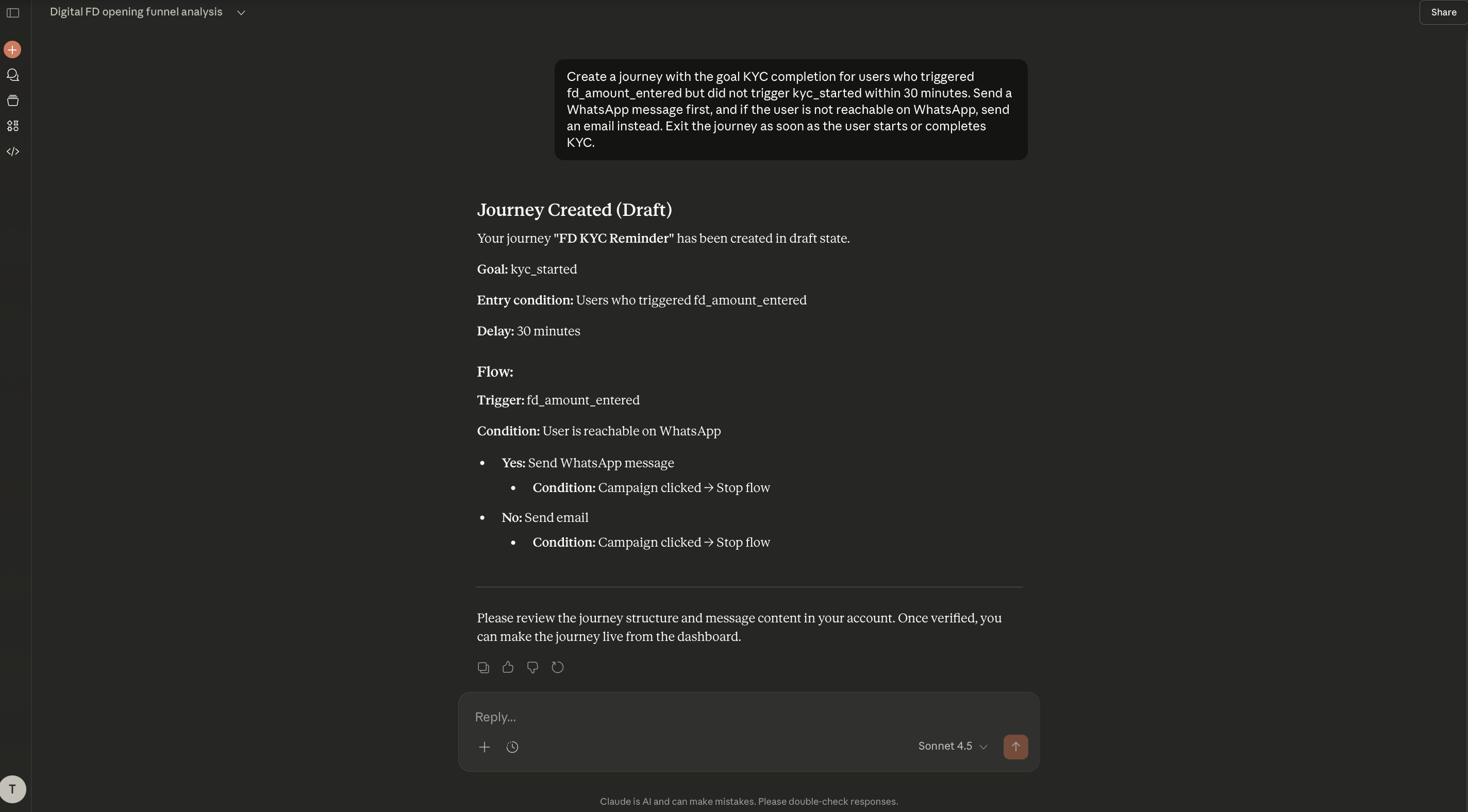
In response, Claude created and saved the journey as a draft. We can review this journey in the NVECTA panel, make any necessary adjustments, and publish it when ready.
This allows us to move from analytics → diagnosis → action in a single flow, without manually building reports, segments, or campaigns.
Similarly, you can use Claude to get any insight from NVECTA and act on it right away, whether it’s fixing funnel drop-offs, improving conversions, or running targeted follow-up campaigns.
Troubleshooting
- Authorization issues: Make sure you’re logged in to NVECTA in the same browser session before starting the authorization. If the issue persists, log out of NVECTA, log back in, and then retry the connection.
- No results for an event or property: Your workspace may be using a different event or property name than the one mentioned in your prompt (for example, lead_submitted instead of form_submission, or traffic_source instead of utm_source). In most cases, Claude checks available events automatically, but if results are still missing, verify the naming manually. For event properties, ask Claude to list all properties for a specific event (for example, “List all properties for the form_submission event”), then retry with the correct names.
- Permission errors: Claude can only perform actions that are allowed by the tool permissions configured for the NVECTA MCP connector. Go to Settings → Connectors, click Configure next to NVECTA MCP, and check whether the required tools have permission. If you’re unsure which tool is needed, choose “Always allow” from the top-right menu to grant access to all available NVECTA tools.
Conclusion
Once NVECTA is connected to Claude, you can use natural language to analyze customer behaviour and take action instantly. From analysis and diagnostics to creating segments, drafting campaigns, and triggering journeys, everything happens in one continuous workflow.
This removes manual effort and helps teams move faster from insight to action, directly from the conversation.
Was this article helpful?
That’s Great!
Thank you for your feedback
Sorry! We couldn't be helpful
Thank you for your feedback
Feedback sent
We appreciate your effort and will try to fix the article